
Claim Reports
Access detailed processing reports and track claim status in Billumbra
Billumbra provides two ways to review your submitted claims: individual inpatient claim reports and a comprehensive claims dashboard.
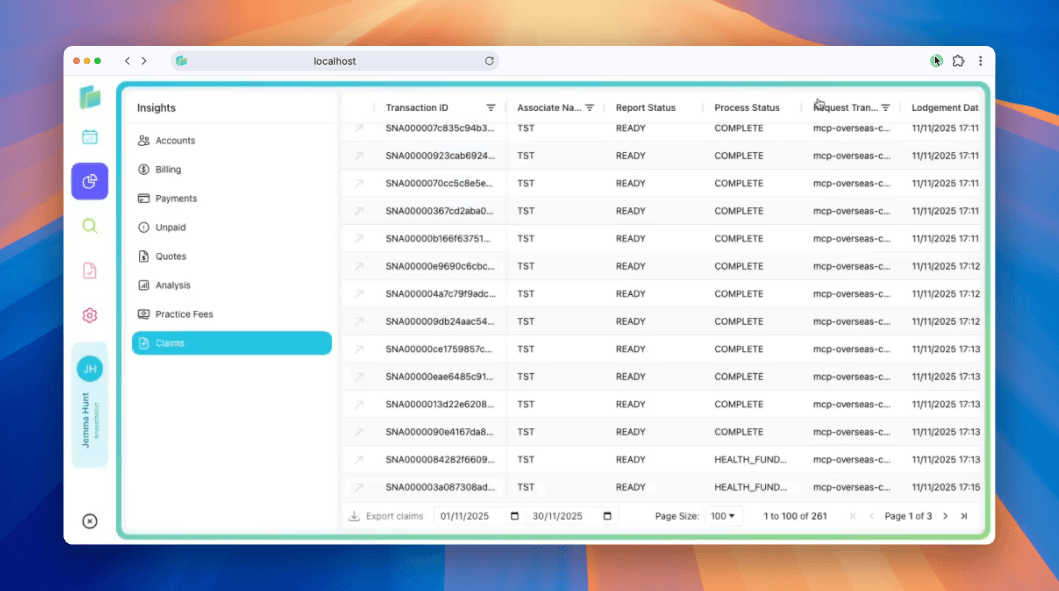
Claims dashboard
Navigate to the Insights > Claims section in the left sidebar to see all lodged claims in a filterable table.
Dashboard columns
| Column | Description |
|---|---|
| Transaction ID | Unique claim identifier:click to view the full report |
| Associate Name | Practice or billing group name |
| Report Status | READY, COMPLETE, or error states |
| Process Status | COMPLETE, HEALTH_FUND_..., showing assessment progress |
| Request Transaction | Internal transaction reference |
| Lodgement Date | Date and time the claim was submitted |
Filter and export claims
- Date range filter: Set start and end dates to view claims from a specific period
- Export claims: Download claims data for accounting or reconciliation
- Page size: Adjust how many claims display per page (e.g., 100)
- Pagination: Navigate through multiple pages of results
Use the claims dashboard to quickly identify claims that need attention:look for statuses other than COMPLETE to find pending or rejected claims.
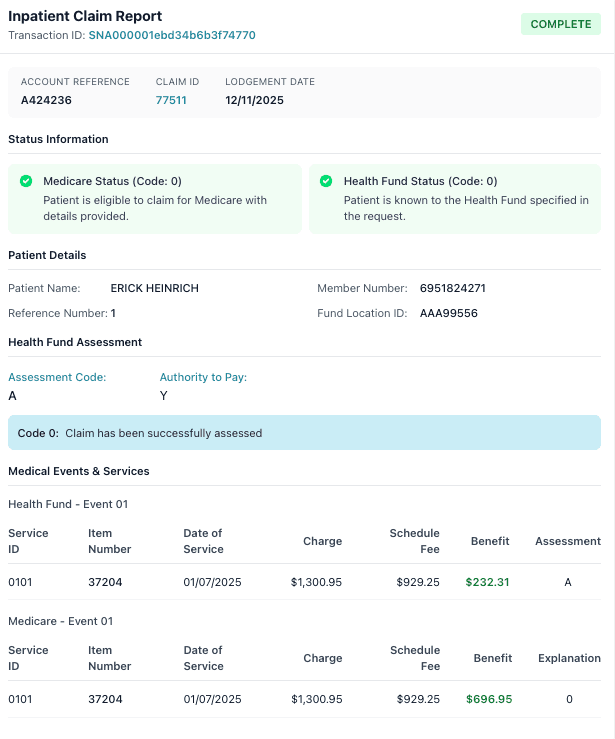
Individual inpatient claim report
After lodging a claim, click the report icon to view the full inpatient claim report. This detailed view shows everything about a single claim.
Report header
| Field | Description |
|---|---|
| Transaction ID | Unique identifier for the claim (e.g., SNA000001ebd34b6b3f74770) |
| Status badge | COMPLETE, READY, or HEALTH_FUND_... showing current processing state |
| Account reference | Your internal reference number for the claim |
| Claim ID | Medicare-assigned claim identifier |
| Lodgement date | Date the claim was submitted |
Status information
Two panels confirm eligibility at the time of claim submission:
- Medicare Status (Code: 0) : Patient is eligible to claim Medicare with details provided
- Health Fund Status (Code: 0) : Patient is known to the health fund specified in the request
Patient details
| Field | Description |
|---|---|
| Patient name | Full name as recorded with Medicare |
| Member number | Health fund membership number |
| Reference number | Your internal patient reference |
| Fund location ID | Health fund identifier |
Health fund assessment
When the claim has been assessed by the health fund:
- Assessment Code: Result code (e.g.,
A) - Authority to Pay: Whether the patient gave authority to pay (
YorN) - Code explanation: Plain text explanation (e.g., "Claim has been successfully assessed")
Medical events & services
Each claim breaks down into medical events and individual services:
Health Fund - Event
| Field | Description |
|---|---|
| Service ID | Your service identifier |
| Item Number | MBS item code (e.g., 37204) |
| Date of Service | Procedure date |
| Charge | Amount you charged |
| Schedule Fee | Medicare schedule fee |
| Benefit | Health fund benefit paid |
| Assessment | Result code |
Medicare - Event
| Field | Description |
|---|---|
| Service ID | Your service identifier |
| Item Number | MBS item code |
| Date of Service | Procedure date |
| Charge | Amount you charged |
| Schedule Fee | Medicare schedule fee |
| Benefit | Medicare benefit paid |
| Explanation | Assessment code (e.g., 0 for approved) |
The report displays both health fund and Medicare assessments for each service, making it easy to reconcile payment from both sources.
Understanding claim statuses
Report status
READY: Claim submitted and awaiting processing responseCOMPLETE: Fully processed with assessment results availableREPORT_NOT_READY: Still being processed by Medicare or the fundREPORT_NOT_FOUND: Can't retrieve the report (see troubleshooting)
Process status
COMPLETE: Both Medicare and health fund have assessed the claimHEALTH_FUND_...: Partial status showing health fund processing state- Error codes: Specific rejection or validation issues
If a claim shows an error status for more than 48 hours, click into the full report to review the assessment codes and make any necessary corrections.